Payments Integration SOP
This document outlines the end-to-end process for integrating payment gateways with the BusinessOnBot (BoB) platform. Successful integration is critical for enabling native In-Chat payments on WhatsApp and Instagram, driving higher conversion rates for merchants.
Overview
Scope
This SOP covers the technical configuration of supported payment gateways and the administrative workflows required to ensure secure transaction processing.
Objectives
- Setup Accuracy: Ensuring correct API key mapping to avoid transaction failures.
- Onboarding Efficiency: Streamlining credential collection for a faster merchant "Go-Live."
- Security & Compliance: Protecting merchant financial data through restricted access and proper revocation protocols.
Supported Payment Gateways
We currently support the following major gateways in India for native commerce:
- Razorpay: Primary partner for native WhatsApp Pay flows (Supports in-app payments).
- PayU: Supported for web-view and link-based checkouts.
- Cashfree: Supported for high-volume automated collections.
Credential Requirements
Before starting the integration, the following credentials must be obtained from the merchant's respective gateway dashboards:
| Gateway | Required Credentials | Location in Merchant Dashboard |
|---|---|---|
| Razorpay | API Key + Key Secret | Settings > API Keys > Generate Key |
| PayU | Merchant Key + Salt | Manage Account > My Certificates |
| Cashfree | Client ID + Client Secret | Credentials > API Keys |
Never ask a merchant for their dashboard password. Only request the API keys mentioned above.
🔑 Mandatory Gateway Credentials
| Gateway | Required Keys | Path in Merchant Dashboard |
|---|---|---|
| PayTM | Merchant ID + Merchant Key | Developer Settings > API Keys |
| PayU / Biz | Merchant Key + Merchant Salt | Manage Account > My Certificates |
| Cashfree | Key ID + Secret | Credentials > API Keys |
Platform Migration Protocols
When a merchant shifts their core store architecture (e.g., Shopify to WooCommerce), the standard sync process is insufficient for data integrity.
Protocol for Migration:
- No Manual Sync: Do not attempt to trigger a manual sync as metadata structures differ significantly between platforms.
- Raise a CAR: Open a Client Action Request (CAR) directed specifically to Gouthami (Onboarding Team).
- Information Required: You must provide the brand's primary Point of Contact (POC) name and phone number within the request.
Integration Flow (Updated)
The process follows a strict chain to ensure data integrity and platform security.
🛣️ The Integration Chain
- Credential Collection: Onboarding team collects keys securely from the merchant.
- CFR Creation: Raise a Client Feature Request (CFR) for the Engineering team to whitelist the merchant domain or map the backend logic.
- API Validation: Perform a manual check to ensure the provided keys are active and correct (see API section below).
- Authorization: Finalizing the connection (specifically mandatory for Razorpay at the Admin level).
Key Validation (API Check)
Before escalating to the technical team, run the following API call to verify if the merchant keys are valid.
Replace YOUR_KEY and YOUR_SECRET with the merchant's credentials before running the command.
API Authentication
Use your API Key and Secret to validate your integration status.
curl -X GET https://api.businessonbot.com/v1/integrations/validate \
-H "Content-Type: application/json" \
-u YOUR_KEY:YOUR_SECRET
Razorpay Authorization (Mandatory)
Why is this required?
Unlike other gateways, Razorpay requires an OAuth-based Admin Authorization. API keys alone allow BoB to fetch transaction data, but the Authorization allows BoB to trigger payments natively inside the WhatsApp interface, creating a seamless user experience.
Steps to Authorize:
- Navigate to the Integrations > Payments Dashboard in the BoB Admin Panel.
- Select Razorpay and click the "Authorize" button.
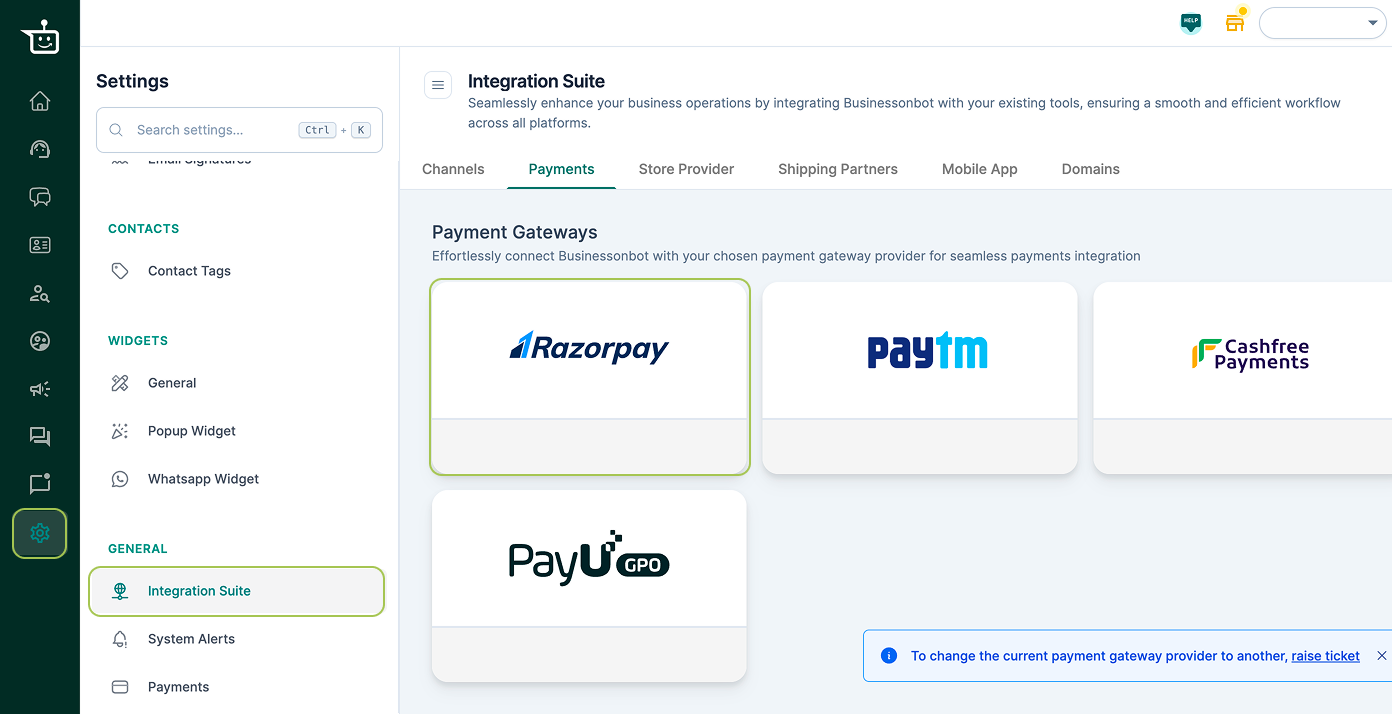
- A pop-up will appear; the merchant (or an admin) must log in to their Razorpay Dashboard.
- Grant the requested permissions to BusinessOnBot.
- Responsibility: This step must be coordinated by the Onboarding/Tech Team.
Razorpay Account Change Scenario
If a merchant switches their Razorpay account (e.g., from a test account to a live business account), follow this exact sequence to avoid service disruption:
- Remove Old Auth: In the BoB Dashboard, click "Revoke Access" on the existing Razorpay integration.
- Clear Keys: Delete the old
API KeyandKey Secret. - Input New Keys: Enter the new credentials obtained from the new Razorpay dashboard.
- Re-Authorize: Repeat the Authorization process mentioned in Section 5.
- Confirmation: Send a
₹1.00test payment link via WhatsApp to confirm the new account is receiving funds.
Security & Compliance Notes
- Access Control: Only Admin-level users should have access to the Payment Integration settings.
- Old Credentials: When a merchant churns or switches accounts, it is mandatory to revoke the old authorization to prevent unauthorized API calls.
- Data Masking: Do not share full API keys in public channels (Slack/Email). If debugging is required, only share the last 4 digits.
Action Items
- Collect
KeyandSecret/Saltfrom the merchant. - Raise a CFR for the Engineering team.
- Coordinate a 5-minute call with the merchant for Razorpay OAuth.
- Validate the integration with a live test transaction.